

It’s the screen you never want to see.
Something is seriously wrong with your phone. Or is it? You might not have a broken phone at all. Instead, you might have a hacked phone.
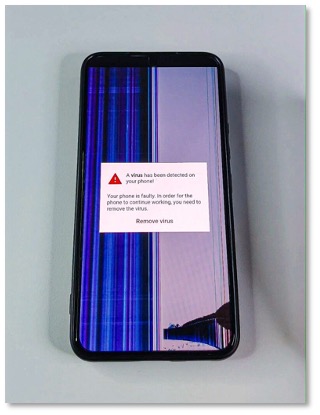
What you see above is a form of scareware, an attack that frightens you into thinking your device is broken or infected with a virus. What the hacker wants you to do next is panic. They want you to tap on a bogus link that says it’ll run a security check, remove a virus, or otherwise fix your phone before the problem gets worse.
Of course, tapping that link takes you to a malware or phishing site, where the hacker takes the next step and installs an even nastier form of malware on your phone. In other cases, they steal your personal info under the guise of a virus removal service. (And yes, sometimes they pose as McAfee when they pull that move. In fact,
Note that in this example above, the hacker behind the phony broken screen is arguably going for a user who’s perhaps less tech savvy. After all, the message atop the “broken” screen appears clear as day. Still, in the heat of the moment, it can be convincing enough.
How does scareware get on phones?
Scareware typically finds its way onto phones through misleading ads, fake security alerts, or hacked websites. In other cases, downloading apps from places other than an official app store can lead to scareware (and other forms of malware too).
As for malware on phones, you’ll find different risk levels between Android and iOS phones. While neither platform is completely immune to threats, Android phones are reportedly more susceptible to viruses than iPhones due to differences in their app downloading policies. On Android phones, you can install apps from third-party sources outside the official Google Play Store, which increases the risk of downloading malicious software.
In contrast, Apple restricts app installations to its official App Store, making it harder for malware to get on iOS devices. (That’s if you haven’t taken steps to jailbreak your iPhone, which removes the software restrictions imposed by Apple on its iOS operating system. We absolutely don’t recommend jailbreaking because it may void warranties and make it easier for malware, including scareware, to end up on your phone.)
If you think you’ve wound up with a case of scareware, stay calm. The first thing the hacker wants you to do is panic and click that link. Let’s go over the steps you can take.
How to remove malware from your Android phone
If you don’t already have mobile security and antivirus for your phone, your best bet is to get the latest virus removal guidance from Android, which you can find on this help page.
Moving forward, you can get protection that helps you detect and steer clear of potential threats as you use your phone. You can pick up McAfee Security: Antivirus VPN in the Google Play store, which also includes our Scam Detector and Identity Monitoring. You can also get it as part of your McAfee+
How to remove malware from your iPhone
Step 1: Restart your phone
Hold down the iPhone power button until you see slide to power off on your screen. Slide it, wait for the phone to power down, and then press the power button to restart your iPhone.
Step 2: Download updates
Having the latest version of iOS on your phone ensures you have the best protection in place. Open the Settings app. Look for Software Update in the General tab. Select Software Update. Tap Download and Install to the latest iPhone update.
Step 3: Delete suspicious apps
Press a suspicious app icon on your screen and wait for the Remove App to pop up. Remove it and repeat that as needed for any other suspicious apps.
More steps you can take …
If those steps don’t take care of the issue, there are two stronger steps you can take. The first involves restoring your phone from a backup as described by Apple here.
The most aggressive step you can take is to reset your phone entirely. You can return it to the original factory settings (with the option to keep your content) by following the steps in this help article from Apple.
How to avoid malware on your phone
Clearly these attacks play on fear that one of the most important devices in your life has a problem—your phone.
- Protect your phone.
Comprehensive online protection software can secure your phone in the same ways that it secures your laptops and computers. Installing it can protect your privacy, keep you safe from attacks on public Wi-Fi, automatically block unsafe websites and links, and detect scams, just to name a few things it can do.
- Update your phone’s operating system.
Along with installing security software, keeping your phone’s operating system up to date can greatly improve your security. Updates can fix vulnerabilities that hackers rely on to pull off their malware-based attacks. It’s another tried-and-true method of keeping yourself safe—and for keeping your phone running great too.
- Avoid third-party app stores.
Google Play and Apple’s App Store have measures in place to review and vet apps to help ensure that they are safe and secure. Third-party sites might very well not, and they might intentionally host malicious apps as part of a front. Further, Google and Apple are quick to remove malicious apps from their stores when discovered, making shopping there safer still.

Stay Updated
Follow us to stay updated on all things McAfee and on top of the latest consumer and mobile security threats.